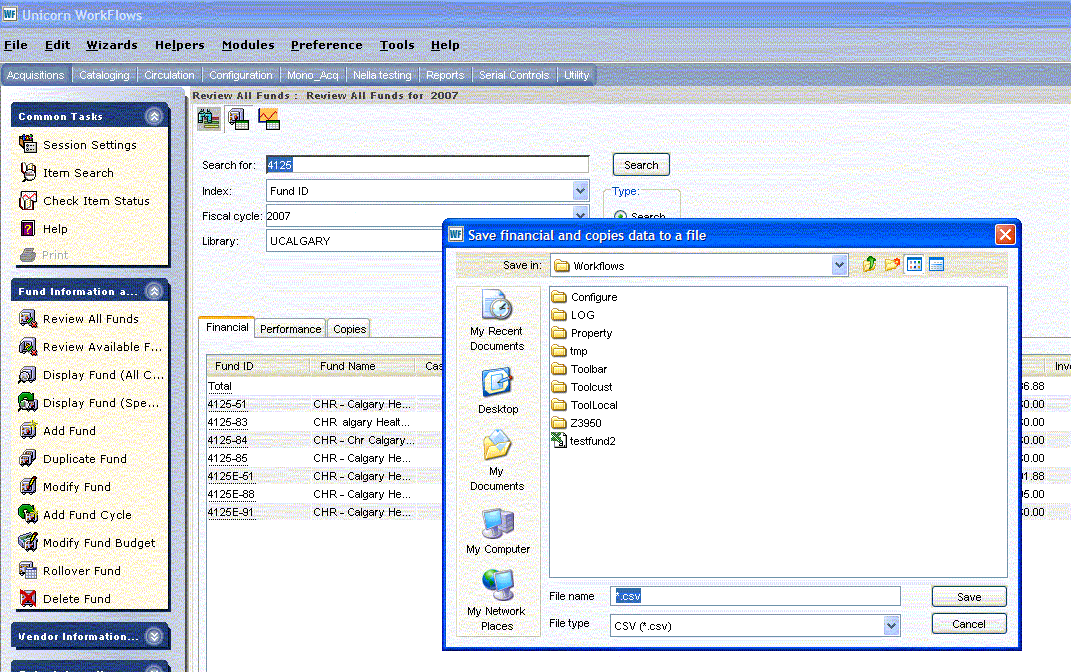
save the file with a different file extention than the default .csv. For example:
Now, open excel and find your saved file. Java Workflows defaults to saving files in c:\Documents and Settings\libuser\Sirsi\Workflows. Also note that you have to change the box lablelled "Files of type:" to All Files to see the file you just saved.
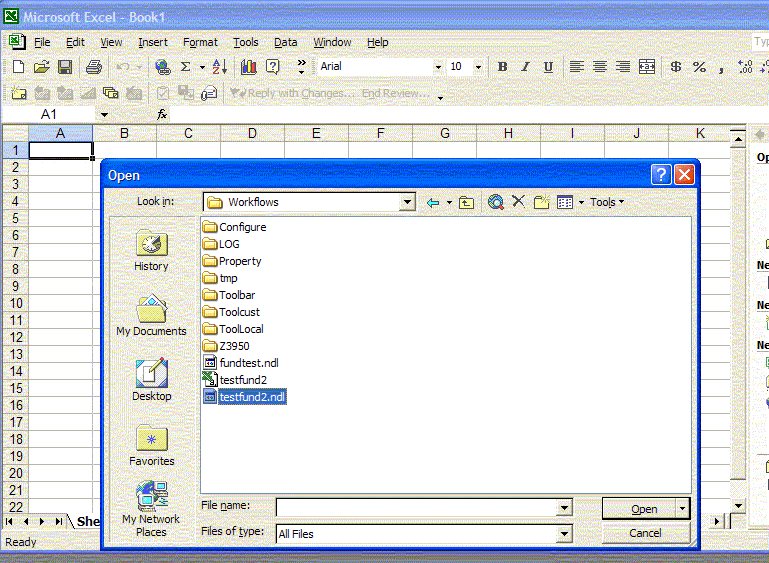
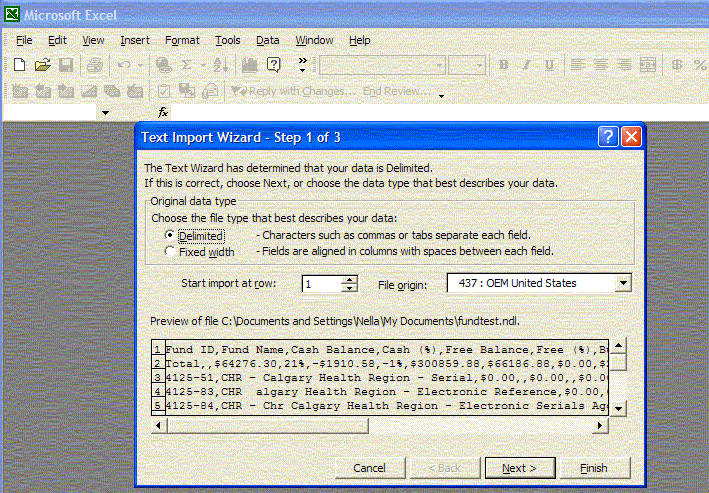
Now when you click Open, the Text import wizard appears. Click next.
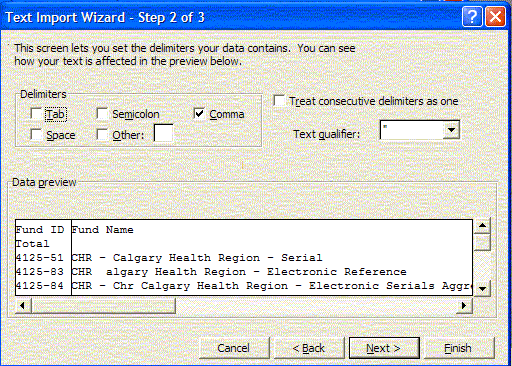
Step 2 of the Text import wizard: ensure that it is set for delimited by a comma not the default TAB.
Step 3 of the Text import wizard is where "E" fund ids can be retained by changing "Column data format" to TEXT. Make this change while column 1 is highlighted. NOTE: if this is not done, the fund ids with Es are converted to scientific number format.
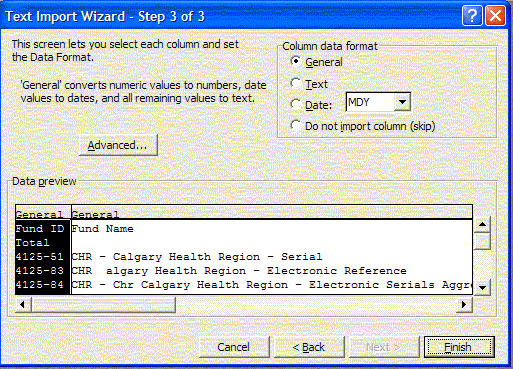
You can fix other columns as you see fix by clicking on the column and highlighting it and then selecting the column format, again using the top right hand box. Some other tips of column format can be found here.
Click Finish when you are ready for it to import into excel.