Importing Information from the Items Ordered on Selected Fund Web Page into Excel
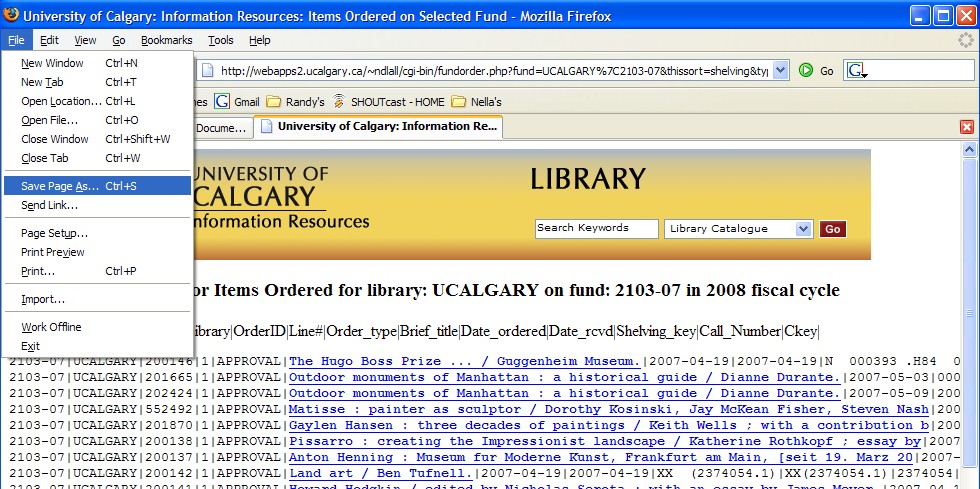
- Results in the webpage appear and one needs to use the File/Save Page As option like this:
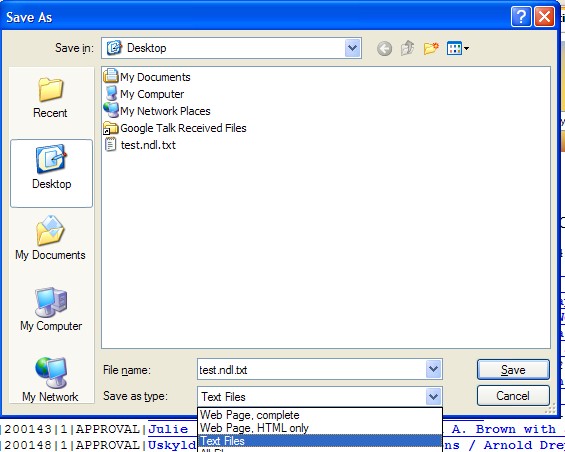
- The save as box appears, save it with a name that has a non-excel filename extention. Something like myfund.txt. Also change the type of file to TEXT like this:
- Now that the information is saved to a file, open EXCEL and use File/Open to OPEN the file you just saved.

- Because the file you are opening is a non-.xls filename extension, Excel will open with the text import wizard to help pull this data correctly into Excel. Ensure that the Step 1 is set to delimited. You can also use this step to select which LINE (row) to begin the import on--skipping the first 5 or so lines of header (or you can bring it all into Excel and delete the 5 rows later). Press Next.

- Step 2 of 3 of the text import wizard is next. Change the delimiter from the default Tab to the Other box and insert a PIPE symbol in the box. (Pipe is above the \ on the keyboard generally.)

- Remember to unclick the TAB box too:
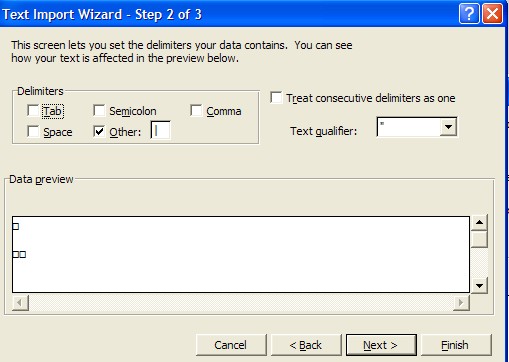
- You can scroll down to see the columns working properly in the main part of your saved file. Press NEXT to go to the last step of the import wizard.

- This next step is VERY IMPORTANT. You need to set the proper column data format for the information to properly display in Excel. So change the first column to TEXT format especially if there are "E"s in the fund id. If you do NOT chane this to TEXT format and the fund id have "E"s in them, Excel will change them to scientific numbers.

- Continue along the columns setting the format as follows:
- Library column should be TEXT format.
- Order ID is left at general format.
- Line num is left at general format.
- Order type is set to TEXT format.
- Brief title is set to TEXT format.
- Date ordered and Date rcvd is set to DATE YMD format.

- Leave shelving, call num and ckey as general format and press Finish button.
- Now your data is in excel.

- Delete the first 5 rows, merge and center the title across the A-K columns and continue to work with your data.

- Remember for columns with lots of text, as can happen in the call number or title columns, one can use Excel's Format Cell, Aligment-Wrap text to help squish the data onto the page. Landscape Page Setup also helps.

Back to: TOP of page
Back to: Unicorn Staff Help, Table of Contents
NDL
University of Calgary Library, ITS